 Throttlestop
ThrottleStop / how-to-use
How to use ThrottleStop
This ThrottleStop guide is the short path: official download, a folder that will not move, one stock benchmark, then FIVR / TPL / BD PROCHOT only if Limit Reasons tells you to.
1. Download ThrottleStop and leave it put
ThrottleStop download from TechPowerUp. Unzip to something like . Running it from the ZIP or from Downloads breaks Task Scheduler later. If Intel XTU is installed, reset XTU to defaults, uninstall, reboot, then start ThrottleStop.exe or it will treat XTU voltages as stock.
2. The disclaimer, then Save
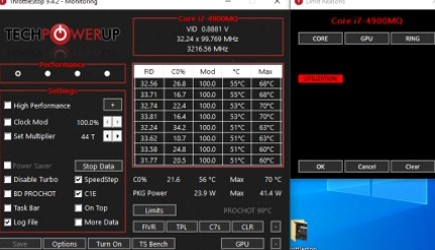
Click OK on the melt-your-laptop notice. Tick High Performance if you want the Windows High Performance plan. Click Save. ThrottleStop.ini in the same folder is now your profile file. Deleting that ini and doing a full shutdown (not restart) is the reset.
3. Read Limit Reasons while you game
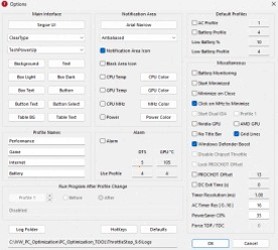
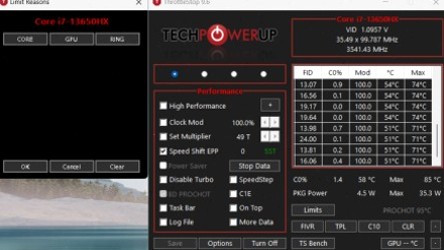
Turn on Log File for a 10-minute session. In Options tick NVIDIA GPU or AMD GPU so the log has GPU MHz. Play. Then look at Limit Reasons:
- Thermal red - heat. Undervolt, cleaner fans, lower PL1, or Disable Turbo on a cool profile.
- PL1 / PL2 red - TPL. OEM watt cap.
- EDP OTHER - current / power delivery. IccMax in FIVR or a board limit.
- CPU clocks dying while GPU is hot - BD PROCHOT.
4. TS Bench before Cinebench
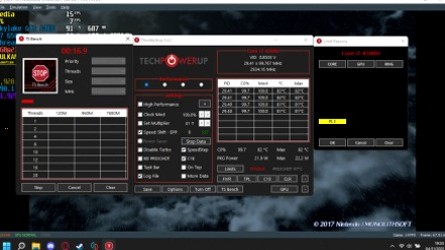
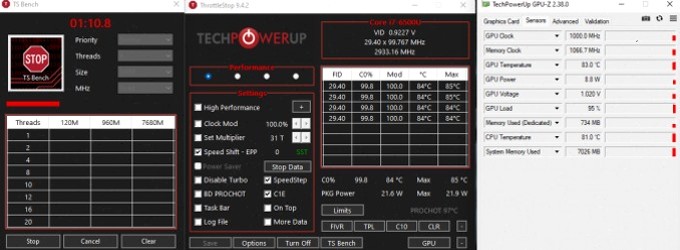
TS Bench is weaker than Cinebench R23, but it is inside the program and it lights Limit Reasons. Run Size 1024M once at stock. Then change one thing. Then run it again. If you need a public number, Cinebench is the one people quote next to ThrottleStop 9.7.
5. One change at a time
ThrottleStop undervolt first if FIVR is unlocked. Then TPL. Then BD PROCHOT. Then Speed Shift EPP. Then turbo ratios. Changing all of them in one sitting is why "it crashed and I deleted the folder" posts exist.
Task Scheduler: run ThrottleStop.exe at logon, delay 10-15 seconds, highest privileges. If you later move the folder, the task still points at the old path and "ThrottleStop is not doing anything".